Starting with version 1.5.8.4 it is possible to run SweepMe! in Dashboard Mode (see the announcement).
Dashboard Mode hides the Main Window of SweepMe!, thus only showing the Dashboard including its widgets like plots, forms, run controls, save bar, etc.
This can be very useful when you set up a measurement that should not be changed anymore. For example:
- You set up a regular measurement in your lab and you want to avoid accidental changes.
- You create a measurement setup for someone else like your colleagues or a customer.
Here, we use the pre-made example setting for form.set to show how to use the Dashboard Mode.
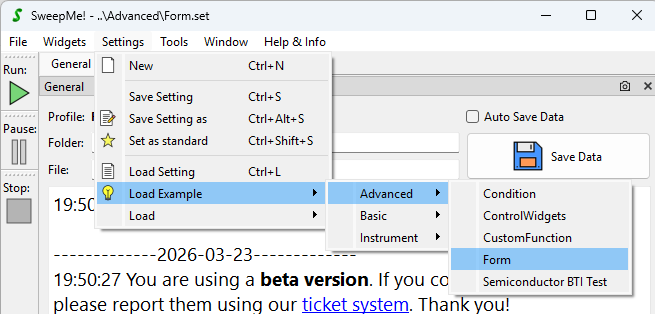
Please make sure you’re running SweepMe! 1.5.8.4 or newer and access the example setting via the menu:
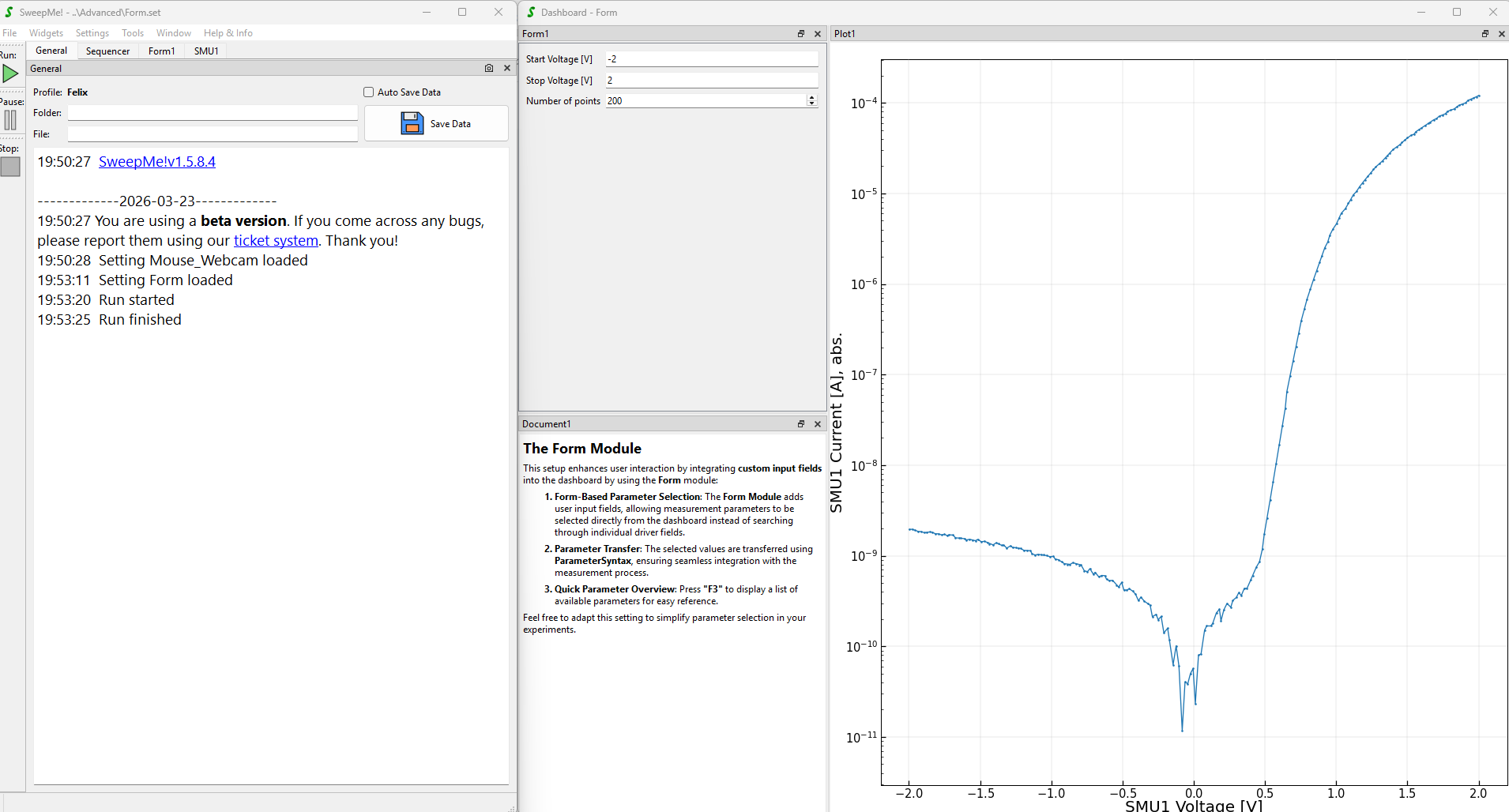
When you run the setting, it will simulate a diode measurement in the voltage bounds defined in the Form widget:
Step 1:
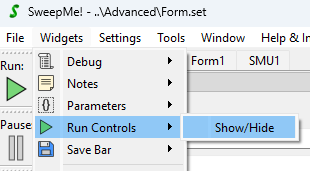
In order to use Dashboard Mode, you need to add Run Controls and a Save Bar to your dashboard via the menu:
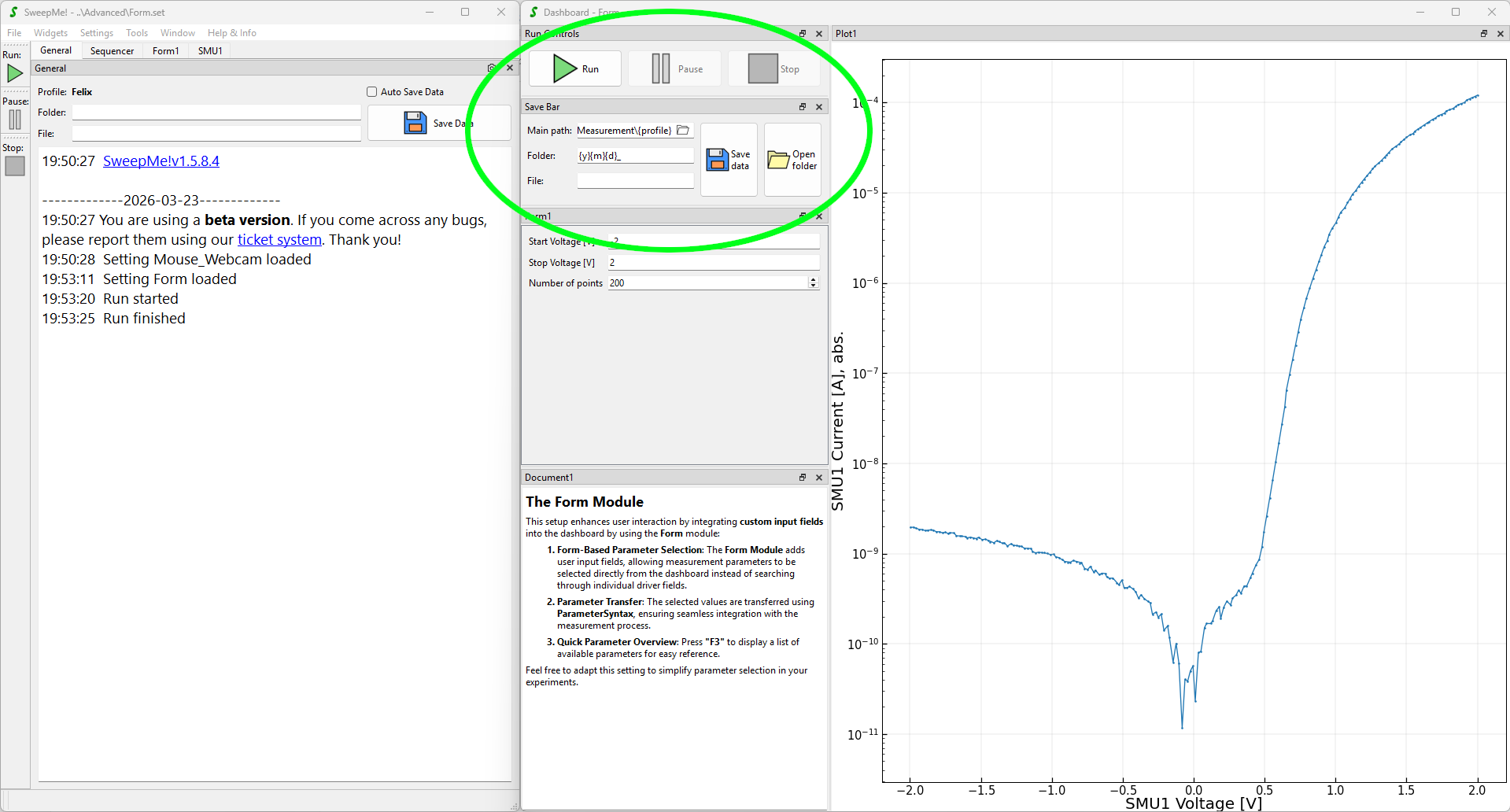
Your screen should now look like this:
Step 2:
Open the Widget overview from the Window menu:
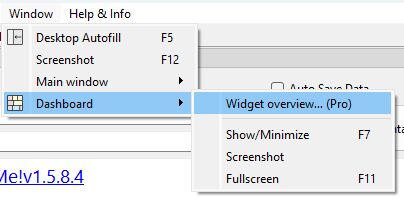
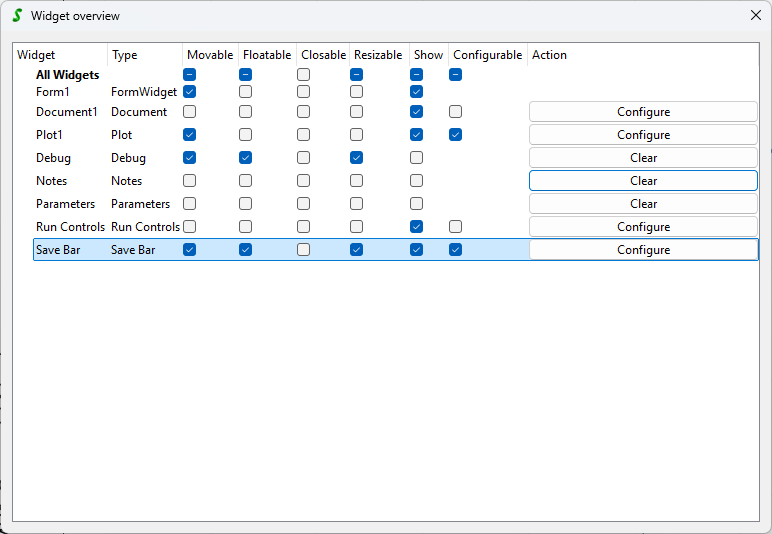
Configure the settings for all widgets as you prefer. Make sure the Run Controls are shown and not closable. Here is a reasonable example:
Save the setting under a new name (i.e. form_dashboard-mode.set) and set as standard.
Hint:
- Leaving “Resizable” actived can be advisable when your setting will be used on different sized screens.
Step 3:
Close SweepMe! and restart from a command-line interface with the parameter --dashboard-mode:

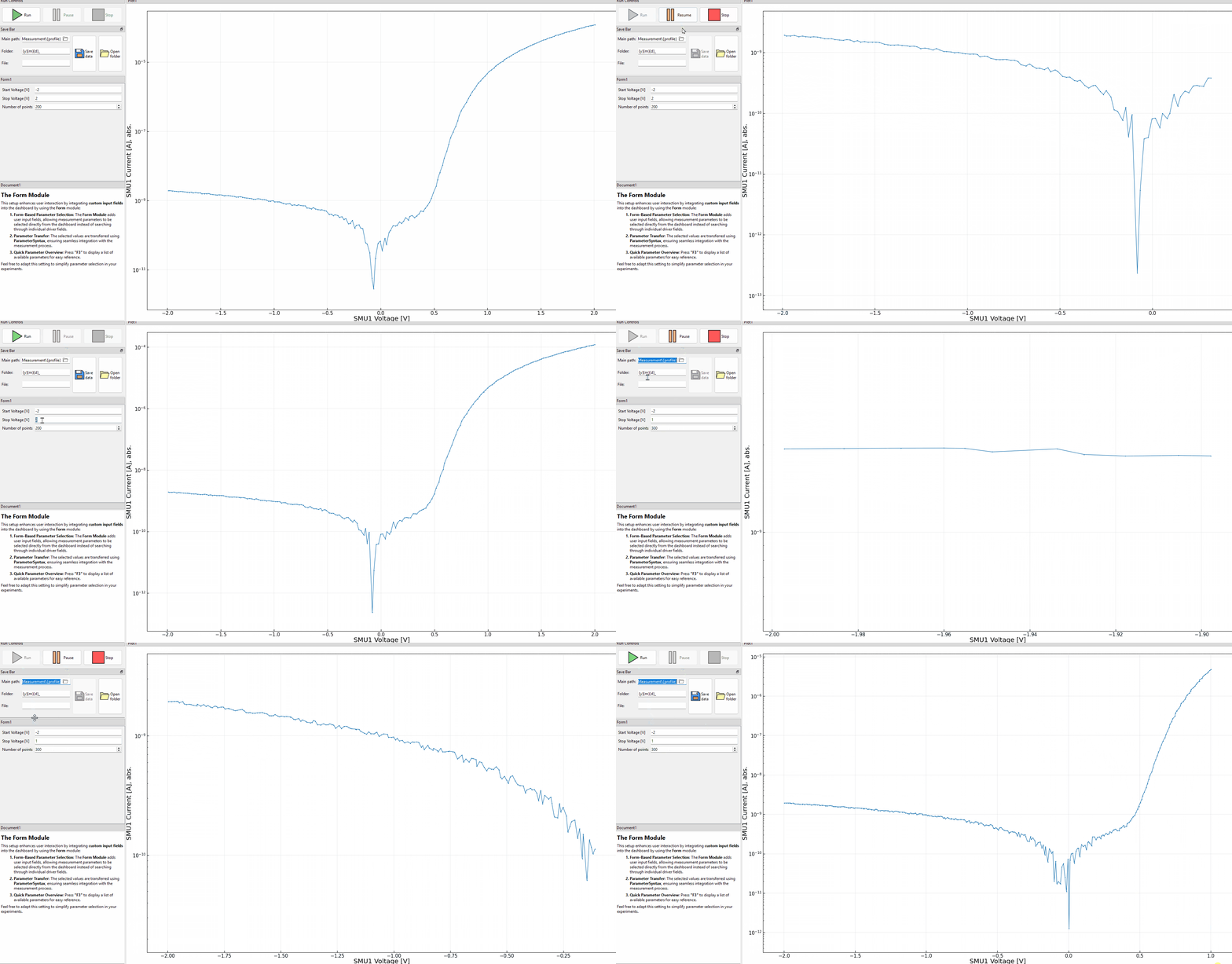
Now you will see your fully functional dashboard and you can run your measurement using the Run Controls widget. The user can operate the software, but only the changes you have allowed in the Widget overview are possible. No changes to the sequencer can be made in Dashboard Mode, thus your measurement sequence cannot be modified by the user.
Hints:
- Instead of running SweepMe! from the command line, you can pass on the parameters in a desktop shortcut.
- You can use the parameter
--setting <path-to-set-file>to define the setting you want to load. Then you do not need to define your setting as standard.